| Q/. How do I set up a web server? A/. See also XP Professional Set-up
This document outlines the methods I use in setting up YourVirtualStore sites. For this
document to be useful you will need to have some knowledge in regards to IIS
and have Administrator Access to the server.
See also this article on IIS for Windows XP
http://www.webwizguide.com/asp/tutorials/installing_iis_winXP_pro.asp
1.1 Creating Web Site's Directories
For this example we will look at setting up a site called webwizard.com.au
which has a customer number 100 allocated to it. This site will have FTP access
with NO Front Page Ext's. I use FTP-Servu as the FTP Daemon due to the added
security and functions it has over the standard Microsoft FTP Server.
The following directories are created using windows explorer.
e:\domains\100\webwizard.com.au\wwwroot
e:\domains\100\webwizard.com.au\databases
e:\domains\100\webwizard.com.au\logs
The directory wwwroot is to be set as the root directory for the web site.
The databases directory is a secure directory only accessible by FTP where you
place all the databases for the site and the logs directory is where a compressed
copy of the sites logs are placed at the end of the month.
A FTP user name and password is created in FTP Serv-U allowing the user to
log into the directory e:\domains\100
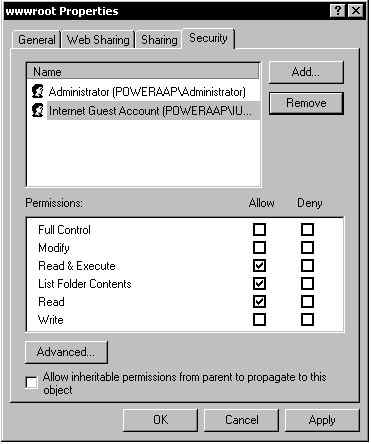
The following permission's need to be set for the wwwroot directory.
In Windows Explorer right click on the directory wwwroot and select Properties.
When the Properties window pops up check to make sure that the Read-Only box
is NOT ticked. After checking that select the Security Tab and check to see
the settings. You need to make sure that the IUSR_COMPUTERNAME user (Internet
Guest Account) has the following settings. The Administrator account has all
the Permission's enabled. Click Apply then Ok.
1.2 IIS Setup
Open up the IIS MMC and start to setup the website. Make sure that you set
the Home Directory path for this site to e:\domains\100\webwizard.com.au\wwwroot
. The next screen make sure you have Read and Run scripts (such as ASP) ticked.
Proceed through the next couple of screens and click Finished.
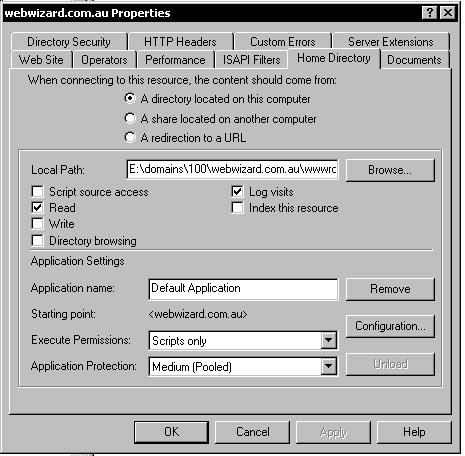
In the IIS MMC right click on the domain name webwizard.com.au and select Properties.
Select the Home Directory Tab and check to see that Execute Permission's is
set to Scripts Only and Application Protection is set to Medium. Click on OK
and then you are done
1.3 Database Link.
For the user to access the YourVirtualStore database they can either access it with a
DSN (Which you will need to create) or they can edit the file shop$config.asp
to look like this.
const xDatabase="shopping500_yvs" (if the database file is called
shopping.mdb then leave this as is, else it needs to be changed to the name
of the DB file)
const xdblocation="../databases" If all the YourVirtualStore files are placed
in the wwwroot dir then set it to this. If they have YourVirtualStore in a dir off wwwroot
say shop then another "../ needs to be added at the front)
This set-up above is based on a Windows 2000 Advance Server running IIS5 and
using FTP Serv-U as the FTP server Software. Front Page Ext's are not used on
the above example. printable version Back to Main Page |